
1. The Presentation Problem
Software demonstrations are hindered by friction. Value must be shown while a complex setup is managed. During a presentation, a switch is made between a static slide deck and a live software view. This change is awkward. The narrative is broken, and the audience is distracted.
Multiple browser tabs are left open. These tabs are navigated by the presenter, and confusion is created. Manual window management is required for the transition from a slide to a web browser. If different roles are shown, the application must be logged into and out of by the presenter. Latency is introduced, and the risk of failure is increased. The presentation is disrupted.
2. Target Audience
The SaaS Demo platform is built for professionals. Specific presentation problems are faced by different roles. These pains are solved by the unified workspace.
| Professional Role | Presentation Pain Solved |
| Solutions Engineer | Complex multi-role setups are simplified. |
| Founder and Co-founder | The software is shown without errors. |
| Sales Representative | The focus is kept on the pitch, not the browser tabs. |
| Business Development Manager | Smooth presentations are delivered to partners. |
| Account Executive | Software demonstrations are controlled with confidence. |
| Technical Support Lead | Product capabilities are demonstrated to clients. |
| Customer Support Specialist | Live troubleshooting steps are simulated with safety. |
| Product Marketing Manager | New features are presented in a controlled environment. |
3. A Unified Workspace
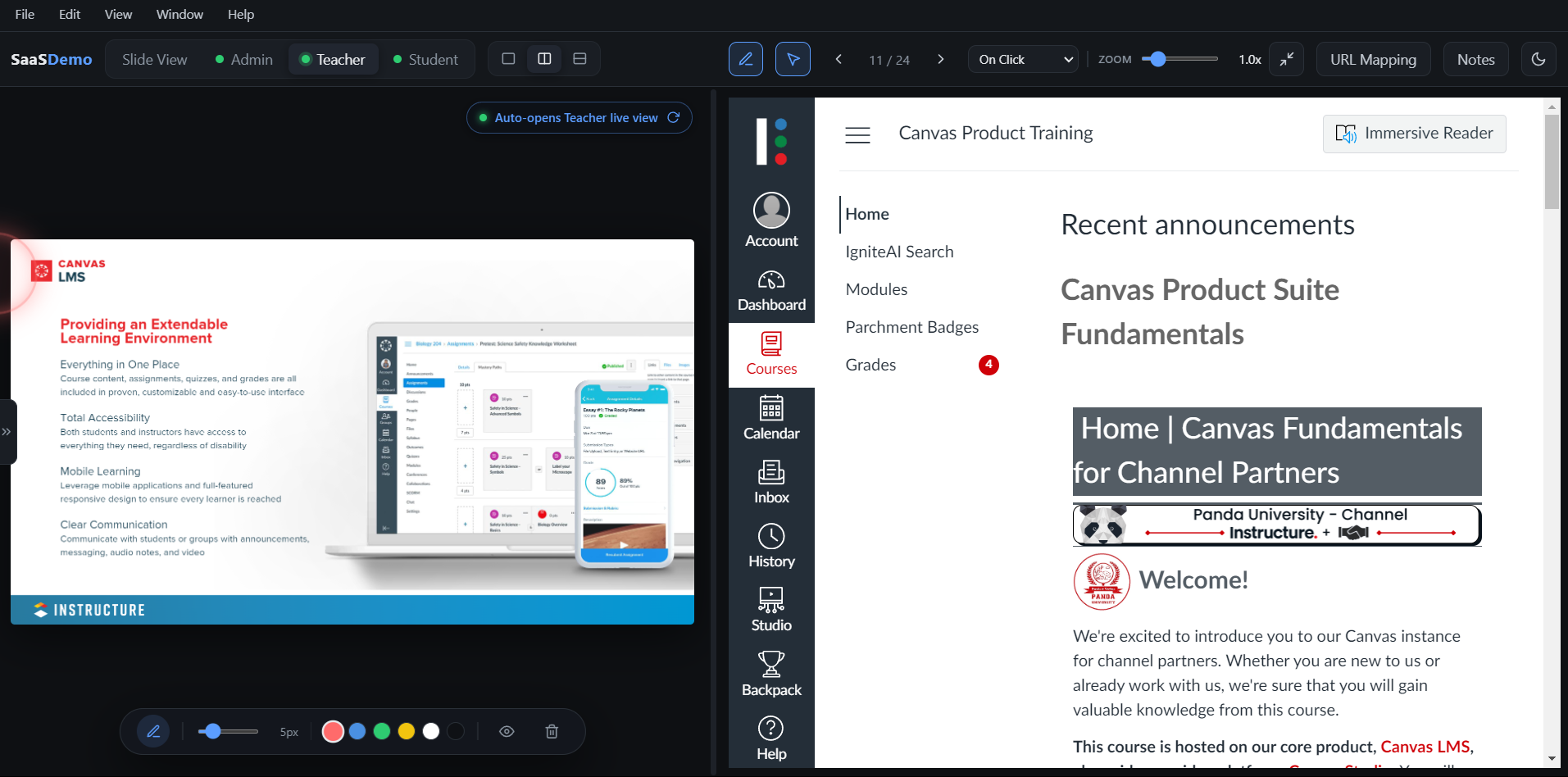
This friction is resolved by the SaaS Demo platform. A single workspace is provided. Live web applications are placed inside the presentation screen.
In past iterations, live content was trapped in a small box inside the slide. The workspace was restricted, and interface clashes were caused. User interactions were limited.
A global control layout is used for the current design. Live views are separated from the slide canvas. Full control over the environment is maintained. The slide deck and the live application are controlled from a single interface. Both parts are managed by the container. A structured format is kept, and access to live features is provided.
4. Key Features
Specific tools are included to improve the presentation experience.
Multi-Role Environments
A top navigation bar is provided for Admin, Teacher, and Student roles. The screen is split into left-right or top-bottom views. Side-by-side role validation is allowed by this split layout. Account mixing is prevented.
Separate user sessions are kept isolated. Browser profiles are not mixed. Different roles are operated at the same time. States are saved when tabs are switched. Re-authentication is not required.
Workspace Sidebar
On the left side, presentation thumbnails are displayed in a sidebar. This sidebar is collapsed to increase space for the live canvas. It is toggled by a button or a keyboard shortcut.
Slides are reordered by a mouse drag-and-drop action. Slide numbers are recalculated when a move is made. This familiar design is used, and the learning curve is reduced.
Slide-to-URL Links
Specific environments are pre-loaded by the system. When a specific slide is reached, the mapped URL and role are opened by the platform.
A credential vault is included. Passwords are hidden, but they are copied to the clipboard by a button click.
Text is inserted into the webpage by the system. The password input is found, and the value is updated. The new values are processed by the website. Session timeouts are prevented by background actions. Passwords are not typed by the presenter during the live event.
File Handling
Presentation files are loaded via a drag-and-drop zone. PDF files, image tracks, and custom HTML presentations are accepted.
When a PDF is dropped, it is rendered without an internet connection. Pages are converted to images. These images are loaded into the presentation container. External servers are not required for file loading.
Presenter Focus Tools
Real-time drawing tools are provided by a canvas layer. Slides are drawn over by the presenter. Different colors and brush sizes are selected from the toolbar.
The canvas is magnified by layout zoom sliders. The screen is reset by a single button.
The audience is guided by a mouse pointer spotlight. The surrounding canvas is dimmed by the tool, and the active area is highlighted.
Smooth movements are used by the zoom tool. For active browser frames, a frozen picture is captured when a zoom action is taken. Rendering errors are avoided on complex web pages.
5. Reliability
Specific methods are used to bypass standard web limits.
Browser Limits Bypassed
Cookie separation is restricted by standard web browsers. Multi-role testing is made difficult by these limits. These limits are bypassed by the SaaS Demo platform. Each role is operated within its own isolated container. Cookies are separated. Multiple roles are kept logged in. Cross-contamination is prevented.
Offline Fallbacks
Live environments can be disrupted by network drops. Unreliable Wi-Fi networks are faced by presenters. High-resolution image fallbacks are used behind the active screens. If the live screen fails to load, the visual presentation is maintained. Static images are used by the presenter.
Sessions should be started before the demonstration. Each role should be logged into during preparation. The session state is saved to the computer by the platform. Live logins are not needed during the presentation. The risk of live login failures is minimized by this step.